Custom Result States
By default, Testiny provides five built-in result states for test executions: Passed, Failed, Blocked, Skipped, and Not Run. With custom result states, you can extend these with additional states that match your team's workflow — for example, adding an In Progress state or distinguishing between different failure types.
Custom result states are available organization-wide and apply to all projects. You need administration privileges to manage them.
You can define a maximum of 10 custom result states.
Watch a short overview of custom result states:
Managing Custom Result States
Custom result states are managed in the Custom Fields settings. To manage custom result states, navigate to Settings > Custom Fields and select the Test case results tab.
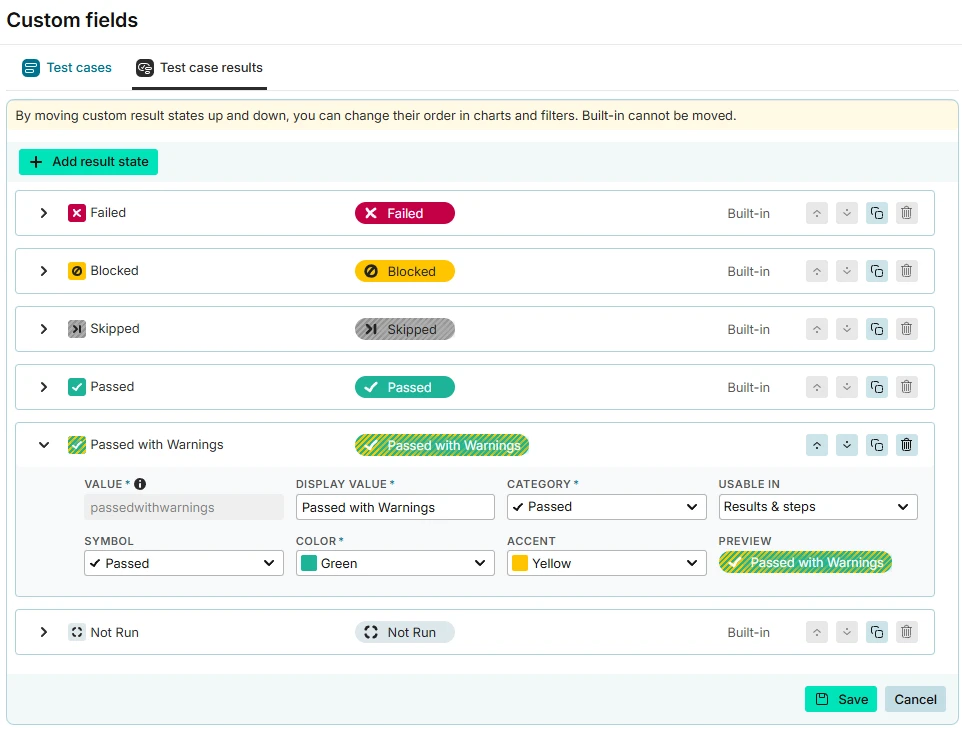
Adding a Custom Result State
To add a new custom result state, click Add value in the Result Status field editor and configure the following properties:
-
Value A unique internal name used to identify the state in the API and system. It is derived from the Display Value.
-
Display Value The label shown throughout the Testiny UI.
-
Category Every custom state must be assigned to one of the built-in categories: Passed, Failed, Blocked, Skipped or Not Run. The category determines:
- How the state is grouped in result dropdowns
- How the state contributes to progress calculations, pie charts, and bar charts
- Whether test cases with this state count as "done" when closing a test run
- Whether test cases with this state count as "passed" or "not passed" in reports.
-
Symbol Choose from a set of predefined images that will be displayed alongside the result state.
-
Color and Accent Set a primary and secondary color for the state.
-
Usable in Defines whether the custom result state can be set on the test case result and/or the individual test case steps during test execution.
Sort Order
Use the Up and Down buttons to modify the order of custom result states in charts, progress bars, and result summaries.
States higher up appear first in bar charts and dashboard widgets.
Archiving and Deleting Custom Result States
-
Archiving a custom result state hides it from all selection dropdowns and filters, but preserves it in historical data. Archived states still appear in reports and history entries where they were previously used.
-
Deleting a custom result state is only possible if the state is not referenced by any test execution data. If a state is still in use, you can archive it.
How Custom Result States Appear in the UI
Custom result states integrate seamlessly across all areas of Testiny:
- Test run result dropdowns — Custom states appear grouped under their parent category. States with a parent of
Not Runappear in thePassedsubmenu; all others appear in theFailedsubmenu. - Step results — Custom states with Usable in configured to include Steps can be set on individual test case steps.
- Filters — Custom result states are available as filter options in test runs, test cases, and reports. Archived states are excluded from filter options.
- Progress overview and pie charts — Custom states appear with their configured colors in the test run progress summary.
- Dashboard and bar charts — Custom states are included in the result distribution, ordered by their severity.
- Reports — PDF and other reports reflect custom result states in charts, summaries, and detailed result listings.
- History and audit log — Changes to and from custom result states are tracked.
- Test case "last result" — The most recent result, including custom states, is shown in the test cases list.
FAQ: Using "In Progress" as a Custom Result State
A common use case is to add an "In Progress" state to indicate that a tester has started executing a test case but hasn't finished yet.
To set this up:
- Navigate to Settings > Custom Fields and select the Test case results tab
- Add a new custom result state with display name
In Progress - Set the Category to Not Run — this ensures that in-progress test cases are still counted as outstanding work in progress calculations and are included when checking if all tests are done before closing a run
- Choose an appropriate symbol and color (e.g. progress with a blue color)
- Change Usable in to Results if you want to mark only whole test case results as in progress